Introduction
Each wizard for setting up exchange rules contains several steps. Some of the steps are specific to a particular exchange plug-in, others are system-wide and work the same on all protocols.
In this article we will describe the system settings that apply to all protocols, and for individual protocols see the following articles.
Partner
If we want to automate the process of capturing or sending documents, we need to fill in the "Partner" field.
This is either the recipient or the sender, depending on the direction of the document.
If we do not fill it in – selecting the "Unknown partner" option, the document will be stuck in the scanner.
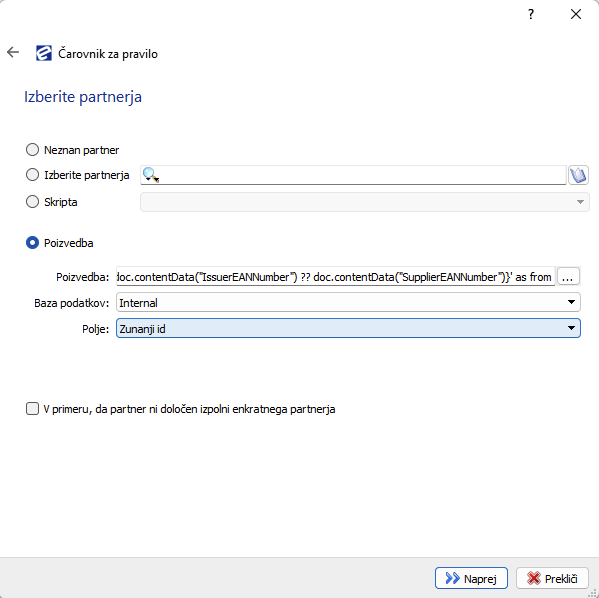
Example of setting
- Unknown partner:
- Selected when we do not want to automatically define the partner. We need to do this later in the scanner.
- Select a partner
- Select the partner who sent us the document from the existing address book.
- Script
- We define the partner using a script.
- Query
- The partner is defined by a query on the selected database.
- Note: If there is no query field on a protocol, it means that query definition is not implemented for that protocol or plugin.
Example query:
In the Query field, enter a query that can be used to retrieve the sender’s name from the database based on the information read by the system on receipt. In this case, the sender’s name is selected according to the e-mail address entered in the internal address book. Of course, we need to keep the directory up-to-date. The query must return the appropriate field required by the protocol. In this case we define a "from" field, so the query must also return a field named "from". We can use "as" in the query to help us.
Databases are configured in the general settings.
select email from eba_addressbook where email='%1' Figure 3: Example of a query where we define the sender of a message
Simple expressions
Simple expressions can be added to the query. Simple expressions are documented on the EBA DMS Development Portal: dev.ebadms.com
Examples of queries with simple expressions
select sifra from su_subjekti where gln='{doc.contentData("IssuerEANNumber") ?? doc.contentData("SupplierEANNumber")}'select
e_location,
recipient_bic,
recipient_account,
bic,
account,
taxnum,
sender_bic,
sender_account,
purpose,
payment_method
from _PosiljanjeRacunovBIZBOX where acKey = '{doc.extern_id}'Document type
For automation, the document type must also be selected. If the document type is not defined, the document will be stuck in the scanner.
Data format
Select the appropriate format for converting or sending the data from the drop-down list.
Always select the latest possible version of the catalogue.
Example:
We want to send an invoice from EBA DMS to a customer. The customer requests that we send him the document in eSlog 2.0 format.
In the sending rule we select the eSlog20vXX data format.
Form
If the received document does not have a visualisation (an image of the document in PDF format), then in this step we can configure which form we want to use to create the visualisation of the document. The template retrieves the data from the xml file and fills in the form, then a PDF is created which serves as the visualisation.
Workflow
If the document is not signed
We can set the system to reject unsigned documents.
If mandatory data is not filled in (content data)
- accept the document (the system accepts the document with all the necessary content data)
- reject document (if a mandatory content data is missing, the document is rejected and not accepted by the system)
If the mandatory data is completed
- Forward to workflow (the document is automatically forwarded to the workflow if all mandatory data is read)
- Leave in scanner (leave the document in the scanner regardless of the mandatory data)
Forward to user in scanner
If desired, a document received under this exchange rule can be forwarded to a specific user in the Scanner.